No Sound on IPTV? How to Fix Audio Problems
Picture fine, no audio — or sound on some channels and not others. Audio faults have a short list of causes, and most are fixed in a minute.
Audio problems look alarming and are usually trivial. The cause is nearly always one of four things, and the first question narrows it down immediately.
Does it affect every channel or only some?
- Only some channels → an audio codec mismatch. Jump to that section.
- Every channel → a device or TV audio setting. Start at the top.
No sound on any channel
Work through these in order.
1. Check the obvious. TV not muted, volume up on both the TV and the streaming device. Fire TV Sticks and Android boxes have their own volume separate from the TV’s, and a muted stick with the TV volume up produces exactly this.
2. Test another app. Open YouTube or anything else on the same device. No sound there either? The problem is the device or TV, not IPTV. That is worth knowing before you go any further.
3. Check the audio output setting. On Fire TV: Settings → Display & Sounds → Audio. On Android TV: Settings → Display & Sound → Advanced sound settings. If output is set to a device that is not connected — an old soundbar, a disconnected Bluetooth speaker — you get silence.
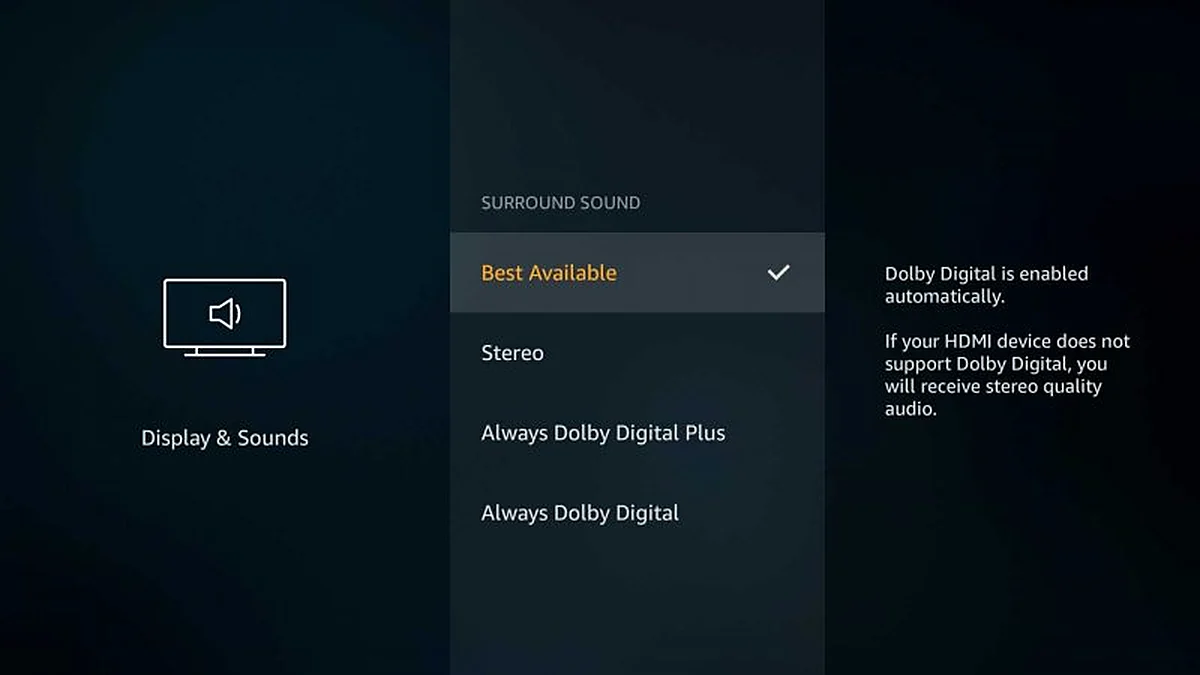
4. Turn off Dolby / surround passthrough. This is the most common real cause. If the device is set to pass Dolby Digital straight through and your TV or soundbar cannot decode that format, you get nothing.
On Fire TV: Settings → Display & Sounds → Audio → Surround Sound — change it from Best Available to Stereo. On Android TV, look for surround sound settings and select PCM or stereo.
Stereo is decoded by essentially everything. You lose surround, which on most setups you were not getting anyway.
5. Restart. Fully close the app, then restart the device. Audio routing does get stuck.
Sound on some channels but not others
This is a codec mismatch, and it is a different problem entirely.
Channels are encoded with different audio formats. Most use AAC, which everything handles. Some use AC3 or E-AC3 (Dolby Digital), and not every device decodes those — particularly cheaper Android boxes and older Fire TV Sticks.
Fix 1: switch the decoder. In your player’s settings, change the audio decoder. If set to hardware, try software — a software decoder handles formats the chip cannot. In IPTV Smarters Pro, TiviMate and XCIPTV this sits alongside the video decoder setting.
Fix 2: turn off passthrough as described above. This forces the device to decode the audio itself rather than handing it to the TV.
Fix 3: choose a different audio track. Some channels carry several — a different language, or a stereo track alongside a surround one. Most players let you switch tracks from the playback menu. Selecting the stereo track often fixes it outright.
Fix 4: try another app. Apps handle audio differently. If a channel is silent in one and fine in another, that is the app.
Audio out of sync with the picture
Different symptom, different causes.
Check for an audio delay setting. Most players have an audio offset adjustment in the playback menu. Nudge it until it lines up.
Check your soundbar. Soundbars and AV receivers add processing delay. Many have a lip-sync or audio delay setting of their own.
Restart the stream. Back out of the channel and reselect. Sync drift often accumulates over a long session and resets cleanly.
Check the device is not struggling. If it is short of processing headroom, audio and video drift apart. Turn on hardware decoding — see our buffering guide.
Sound through the TV but not the soundbar
Check HDMI-ARC. The soundbar must be on the ARC-labelled HDMI port, and HDMI-CEC needs to be enabled on the TV. Manufacturers all name CEC differently — Samsung calls it Anynet+, LG calls it Simplink.
Check the TV’s audio output is set to the external speaker rather than internal.
Try optical instead. If ARC is misbehaving, an optical cable is less clever and more reliable. Note that optical cannot carry the newest surround formats, which for IPTV does not matter.
Very quiet, or wildly inconsistent between channels
Channels are mastered at different levels, and this is normal on any television service.
Look for a volume-levelling setting on your TV — Samsung’s Auto Volume, LG’s Auto Volume Levelling, or similar. It evens out the differences.
Turn off the TV’s audio processing if the sound is thin or strange. Enhancement modes frequently make streamed audio worse.
Headphones or Bluetooth
Bluetooth adds delay. Some is unavoidable. If your device has an audio offset setting, use it.
Bluetooth also drops out. If audio cuts intermittently on Bluetooth, test with wired or TV speakers to confirm that is the cause.
Still nothing?
Message us on WhatsApp with:
- All channels or specific ones — the single most useful detail
- Which device and app
- Whether other apps on the same device have sound
- Whether a soundbar or receiver is in the chain
If it is specific channels, it is nearly always the codec fix above. If it is everything and other apps are also silent, it is the device.
The FAQ covers the common questions, and our playback error guide handles the other failure modes.
Common questions
Why is there no sound on some IPTV channels but not others?
An audio codec mismatch. Channels are encoded differently — most use AAC, which everything handles, but some use AC3 or E-AC3 that cheaper devices cannot decode. Switch the audio decoder to software, or select a different audio track from the playback menu.
How do I fix IPTV audio out of sync with the picture?
Most players have an audio offset setting in the playback menu — nudge it until it lines up. Also check your soundbar, which adds processing delay of its own, and back out of the channel and reselect it, since sync often drifts over a long session.
Why does my soundbar have no sound with IPTV?
Usually HDMI-ARC. The soundbar must be on the ARC-labelled port with HDMI-CEC enabled — Samsung calls it Anynet+, LG calls it Simplink. Also check the television’s audio output is set to the external speaker rather than its internal one.