Fixing IPTV Playback and Login Errors: What Each One Means
"Invalid credentials", "no playlist found", "unable to connect", a black screen with sound — each points somewhere specific. Here is how to read them.
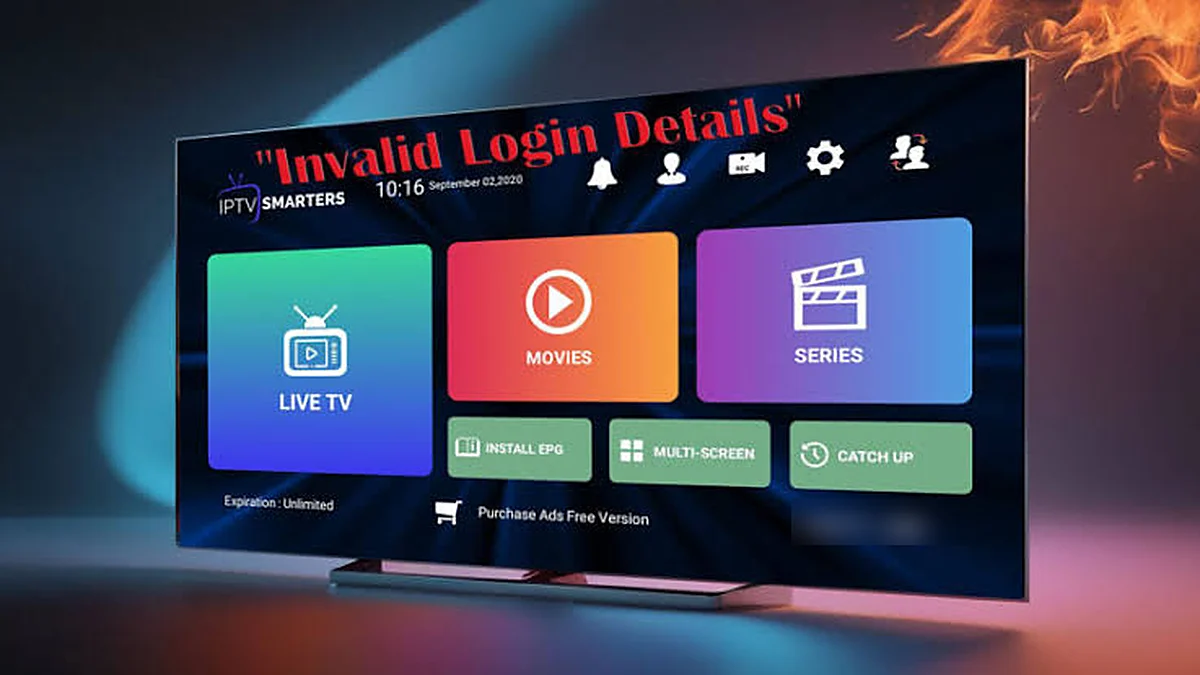
IPTV error messages are unhelpfully vague, but each one does point at a specific area. Knowing which saves you trying random fixes.
Start with the same question every time: does it affect every channel or just one? If one channel fails and the rest are fine, that channel’s source is down. Nothing at your end will fix it and it usually resolves on its own. Everything below assumes the problem affects everything.
“Invalid credentials” / “Wrong username or password”
The app reached our server and the server rejected the details. That is actually useful — your internet and the server are both fine.
Almost always a typo. In order of likelihood:
- A trailing space. Copying from WhatsApp or email frequently grabs one. Tap to the end of each field and check.
- Capitalisation. Usernames and passwords are case-sensitive. A phone keyboard auto-capitalising the first letter is a very common cause.
- The server URL is incomplete. It needs the
http://at the front and usually a port number at the end. Missing either produces this error. - Autocorrect. Phone keyboards “helpfully” change strings. Turn off autocorrect for the field or paste instead of typing.
If the details are definitely right: check your subscription has not expired. If it is within the term, message us on WhatsApp — we can confirm the account status directly.
“No playlist found” / empty channel list
You logged in but nothing loaded.
On a Samsung or LG TV, this usually means the MAC address has not been activated yet, or was registered with a typo. Check the MAC the app shows against what you sent us. Remember the MAC changes if you switch between Wi-Fi and Ethernet — that is a frequent cause of an app that worked yesterday and does not today. Our Samsung guide covers this.
On other devices, try refreshing the playlist from within the app — most have a reload or refresh option. If that does nothing, remove the playlist and add it again.
Be careful with “Clear data”. It wipes your login and you will have to re-enter everything. Clear cache first, which is safe.
“Unable to connect” / “Network error”
The app could not reach the server at all.
Check the device is actually online. Open something else — YouTube, a browser. If nothing works, it is your connection, not us.
Restart the router properly. Unplug at the wall, thirty seconds, plug back in.
Turn off any VPN and retest. A VPN adds a hop and can break the connection outright. If it works without, you have your answer.
Check the server URL again, including the port. A wrong port produces exactly this.
Black screen, but the audio plays
This one is specific and has a specific fix: a decoder mismatch.
Your device is decoding the audio but cannot handle the video format. Go into the player’s settings and switch the decoder — if it is on hardware, try software, and vice versa. In IPTV Smarters Pro, TiviMate and XCIPTV this is under playback or decoder settings.
Generally hardware decoding is what you want. But some streams use formats a given chip does not support, and those specific channels need software. If most channels are fine on hardware and one is not, change it only for that one where the app allows.
Green, pink or distorted picture
Same cause as above, same fix. The decoder is attempting a format it does not properly support. Switch decoders.
This is more common on older or cheap Android boxes whose chips claim support they do not really have — one reason we suggest known brands in our device guide.
Everything loads but nothing plays
Guide and channel list appear; selecting a channel does nothing or spins.
Test the same channel on your phone over mobile data. This single test splits the problem in half. Plays on the phone? Your home network. Fails there too? Get in touch.
Try a different player app. Your details work in any of them. If a second app plays fine, the first app was the problem.
App crashes on launch
Clear the cache — Settings → Apps → your player → Clear cache. Not Clear data.
Check free storage. Under a gigabyte free causes odd crashes, especially on Fire TV Sticks.
Reinstall. You will need to re-enter your login, so have it handy.
“Connection limit reached” / logged out when someone else watches
Not an error — your plan’s simultaneous connection limit. Our plans run from one device up to six, and a one-device plan means exactly that: a second device signing in pushes the first off.
Check what you bought on the pricing page. Also worth remembering a phone left streaming in the background still counts.
Before you message us
If none of the above works, send us these four things on WhatsApp and we can usually resolve it in one exchange rather than several:
- The exact error text, or a photo of the screen
- Which device and which app
- Whether it affects all channels or specific ones
- Whether it works on another device or on mobile data
That last one is the most useful single piece of information you can give us.
The buffering guide covers stutter rather than outright failure, and the FAQ has the rest.
Common questions
Why does my IPTV say invalid credentials?
Almost always a typo rather than an account problem. The usual causes are a trailing space copied from a message, a capital letter where there should be lowercase, autocorrect altering the text, or a server URL missing its http:// prefix or port number.
Why is there sound but no picture?
That is a decoder mismatch. Your device is decoding the audio but cannot handle the video format. Switch the decoder in your player’s settings — if it is set to hardware, try software. Some streams use formats a particular chip does not support.
What does ‘no playlist found’ mean?
You logged in but nothing loaded. On a Samsung or LG TV it usually means the MAC address has not been activated yet, or was registered with a typo. On other devices, refresh the playlist from within the app, or remove and re-add it.