How to Set Up IPTV on a Samsung Smart TV in New Zealand
Samsung TVs use MAC-address activation rather than a username and password. Here is how to find your MAC, which apps to install, and what to do when the channel list does not appear.
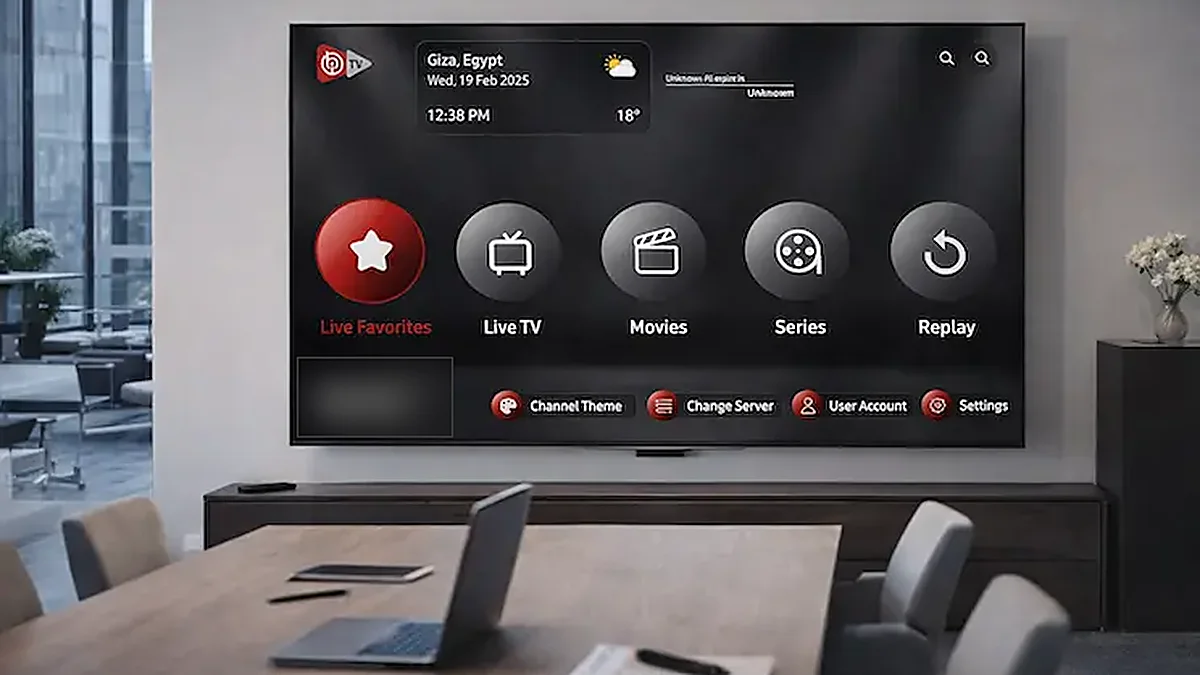
A Samsung Smart TV runs IPTV without any extra hardware — no stick, no box, no cables. The setup works differently from Android or Fire TV, and knowing the difference in advance avoids most of the confusion.
The key difference: MAC address, not password
On Android, Fire TV and Apple devices you log in with a server URL, username and password. Samsung TVs generally do not work that way.
Instead, the player app displays a MAC address — a unique identifier for your TV — and sometimes a device key. You send that to us, we link it to your subscription, and the app loads your channels the next time you open it.
This means there is nothing to type in. No long URL to get wrong with the remote, which is genuinely a relief on a TV remote. It also means activation is not instant — someone has to link it at our end, so allow a little time rather than expecting it the second you install the app.
Step 1: Install a player app
- Press the Home button on your remote
- Open Apps (the Smart Hub app store)
- Search for one of: IBO Player, Smarters Player Lite, or Duplex IPTV
- Select it and choose Install
These are standard IPTV player apps, not provider-specific ones. Which are available depends on your TV’s model year and Tizen version — if one is not in your store, try the next.
If none of them appear, your TV is likely an older model whose app store no longer receives new apps. That is not a fault; it happens as platforms age. The simplest fix is a Fire TV Stick or Android TV box plugged into an HDMI port — see our Fire TV Stick guide. Your TV still does the displaying; the stick does the app.
Step 2: Find your MAC address
Open the app you installed. On first launch it displays a MAC address — twelve characters in pairs separated by colons, like 00:1A:2B:3C:4D:5E — and often a device key or ID as well.
Write down everything it shows, or photograph the screen with your phone. That is the fastest way to avoid transcription errors.
If the app does not show it, you can also find it under Settings → Support → About This TV, where it may be listed as the Wireless MAC or Ethernet MAC. Use the one matching how the TV connects — wireless if on Wi-Fi, Ethernet if cabled.
Step 3: Send it to us
Message us on WhatsApp with the MAC address and any device key the app displayed, along with your order details. We link it to your subscription.
Two things worth knowing:
The MAC is tied to how the TV connects. If you set up over Wi-Fi and later plug in an Ethernet cable, the MAC changes and activation stops working. Pick how the TV will connect and stick with it — and if you later switch, message us and we will update it.
One MAC per connection. If you have a multi-device plan and several TVs, each needs its own MAC registered.
Step 4: Reopen the app
Once we confirm activation:
- Close the app completely — back out entirely, do not just press Home
- Reopen it
The channel list and programme guide load on their own, usually within a couple of minutes. A large channel list takes a moment the first time.
If nothing appears after five minutes, close and reopen once more. Samsung’s app lifecycle sometimes keeps an app suspended rather than genuinely closing it, and the app needs a real restart to re-check activation. Turning the TV off at the wall for thirty seconds forces it.
Common problems
“No playlist found” or an empty channel list. Activation has not gone through yet, or the MAC was mistyped. Re-check the MAC against what the app displays and message us.
The app worked and has now stopped. Most often the connection method changed — someone plugged in an Ethernet cable, or the TV joined a different network. Check the MAC in the app still matches what we registered.
The app disappeared after a TV update. Samsung updates occasionally remove sideloaded or region-restricted apps. Reinstall from Smart Hub; your activation still stands as the MAC has not changed.
Buffering. Almost always Wi-Fi rather than your plan. Samsung TVs are frequently mounted far from the router. Try the 5GHz network, or run an Ethernet cable — and remember that changing to Ethernet changes the MAC, so tell us if you do. Our buffering guide has the full sequence.
What Samsung TVs cannot do
Recording. Tizen restricts the storage access DVR needs, so the Samsung player apps generally do not record. If recording matters, add a Fire TV Stick or Android box and use TiviMate — see our recording guide.
Some picture settings. You have less control over decoding than on Android. If a particular channel misbehaves on the TV but plays fine on a phone, that is the platform rather than the stream.
Is the built-in app the best option?
If your TV is reasonably recent, yes — it is the tidiest setup, with one remote and nothing extra plugged in.
If your TV is older, a Fire TV Stick or Android box will be faster, get app updates for longer, and add recording. Smart TV app platforms stop receiving updates years before the TV itself stops being a perfectly good screen.
Other devices are covered in the setup guide, and the FAQ answers the common questions. If you are stuck, send us the MAC address and what the app is showing, and we will sort it out.
Common questions
Why does a Samsung TV need a MAC address for IPTV?
Samsung player apps activate by device identifier rather than a username and password. The app displays a MAC address, you send it to the provider, and it is linked to your subscription. The upside is that there is nothing long to type with a TV remote.
What if IBO Player is not in my Samsung app store?
That usually means an older TV whose app store no longer receives new apps — not a fault, just platform ageing. Try Smarters Player Lite or Duplex IPTV first. If none appear, a Fire TV Stick or Android box plugged into a spare HDMI port solves it cheaply.
Does the MAC address change if I switch to Ethernet?
Yes, and this catches people out. The MAC is tied to how the television connects, so moving from Wi-Fi to a cable changes it and activation stops working. Pick one connection method and stay with it, or tell your provider so they can update the registration.