IPTV MAG Box Setup in New Zealand: Easy 4-Step Guide
A MAG box is a dedicated IPTV set-top box: no app store, no sideloading, just a portal address and a MAC number. Here is the full setup and the handful of problems worth knowing about.
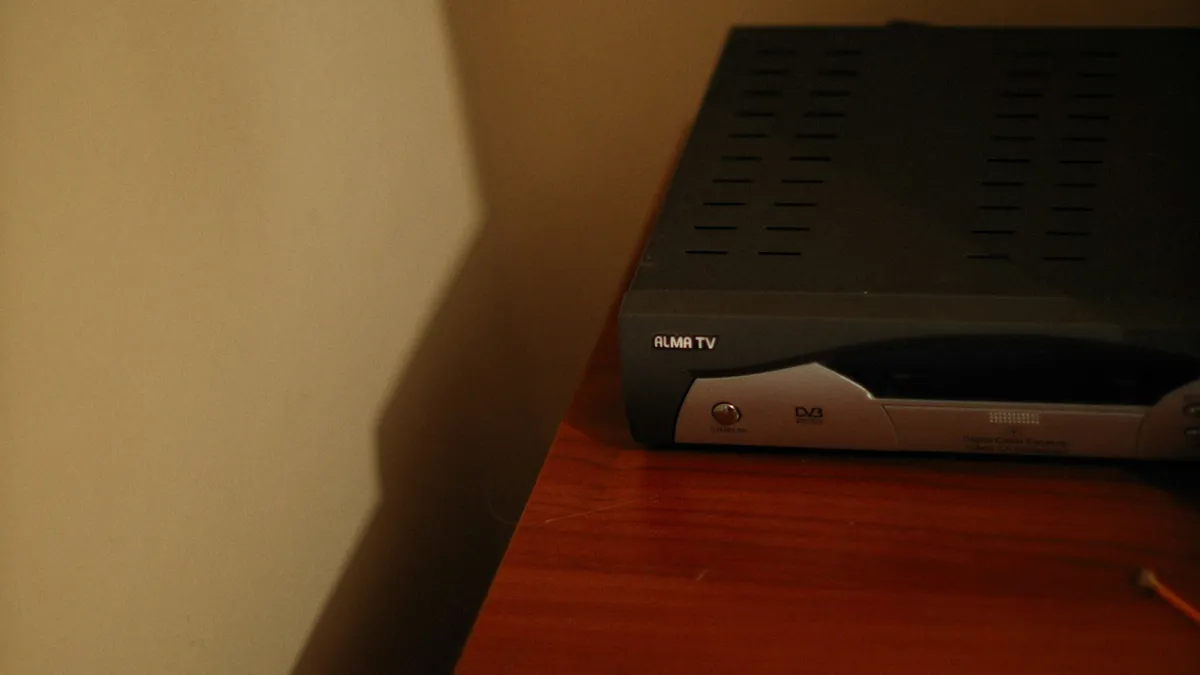
An IPTV MAG box is a small set-top box built for one job: live TV over the internet. There are no apps to install and nothing to type except one address. For New Zealand households who want a simple appliance rather than a streaming stick, it is one of the easiest set-ups there is.
An IPTV MAG box works differently from most devices. Instead of a username and password, it uses a portal URL and its MAC address, the box’s unique hardware ID. You give the MAC to your provider, they give you the portal, and the box connects.
What you need for an IPTV MAG box
- A MAG box, such as the MAG 520 or 524 from Infomir, connected to your TV by HDMI
- The portal URL from your provider
- An internet connection, ideally an Ethernet cable from the router
If you have not ordered yet, the plans are here, and you can test the service first with a free 24-hour trial. Mention that you are using an IPTV MAG box when you get in touch, because the account is set up by MAC address rather than login details.
How to set up an IPTV MAG box in 4 steps
Step 1: Find the MAC address
The MAC address is printed on a sticker underneath the box. On Infomir MAG boxes it starts with 00:1A:79.
You can also find it on screen: turn the box on and look under Settings → System information.
Take a photo of the sticker with your phone. It is twelve characters and easy to copy wrongly, and a single wrong character means the box will not connect.
Step 2: Send the MAC to your provider
Send the MAC address and your order details to your provider. They link the MAC to your subscription and send back your portal URL.
Activation happens on the provider’s side, so allow a little time before the box will load.
Step 3: Enter the portal URL
- Turn the box on and wait for the start screen
- Open Settings (on some models, press SET on the remote)
- Go to System settings → Servers → Portals
- In Portal 1 name, type any label you like
- In Portal 1 URL, type the portal address exactly as supplied
- Select Save
Type carefully. Portal addresses are long and every character matters, including the http:// at the start and any slash at the end.
Step 4: Restart the box
Go back to the settings menu and choose Reboot, or unplug the power for ten seconds and plug it back in.
The box loads the portal on start-up. The first load takes a minute while the channel list and TV guide download. Your IPTV MAG box is now ready to use.
Settings worth checking on your IPTV MAG box
Use Ethernet. Most MAG boxes have a network port. Most New Zealand fibre connections are plenty fast, so a cable from the router removes the most common cause of buffering. On a box that stays in one place, it is an easy fix.
Check the time zone. Under Settings → System settings → Time, set the time zone to Auckland. The wrong zone shifts every programme in the TV guide, and daylight saving in late September and early April is when it usually shows up.
Set the video output. Your IPTV MAG box should match your TV. Under the video settings, match the output resolution to your TV. A 4K TV needs a 4K-capable box such as the MAG 524.
Keep the firmware current. Infomir releases software updates for its boxes. If the box offers an update, install it, because updates often fix playback and portal bugs.
Fixing common IPTV MAG box problems
“Loading portal” that never finishes. The portal URL is usually mistyped. Check each character against the original, including the slash at the end. Then reboot.
“Your STB is blocked” or “Access denied”. The MAC is not activated yet, or it was registered with a typo. Compare the MAC on the sticker with what you sent.
Everything worked, then stopped. If an IPTV MAG box suddenly stops, check your subscription has not expired, then reboot the box and the router. If it still fails, message your provider with a photo of the error.
Channels buffer in the evening. Usually your home network rather than the box. See our buffering guide, and our internet speed guide for what each New Zealand connection type can handle.
The TV guide is blank. Give it a few minutes after the first start-up, then reboot. If it stays empty, check the time zone setting above.
Is an IPTV MAG box the right choice?
Good for New Zealand households that want a simple appliance: one remote, one job, nothing to update or break. It suits family members who find app stores confusing.
Less good if you also want Netflix, YouTube or other apps, because MAG boxes do not run them. A Fire TV Stick or Android TV box does IPTV plus everything else, and our device buying guide compares them.
One more limit: recording depends on the model and portal, and is generally more limited than TiviMate on Android. If recording matters, see our recording guide.
Other devices are covered in the setup guide, and our FAQ answers the common questions.
Common questions
Where do I find the MAC address on a MAG box?
It is printed on a sticker underneath the box and starts with 00:1A:79 on Infomir MAG models. You can also find it on screen under Settings, System information. Take a photo of the sticker, because one wrong character stops the box connecting.
Why is my IPTV MAG box stuck on “loading portal”?
Almost always a mistyped portal URL. Check each character against the address your provider sent, including http:// at the start and any slash at the end. Save, then reboot the box. If it still hangs, check the MAC address has been activated.
Can a MAG box run Netflix or YouTube?
No. MAG boxes are built only for IPTV and do not run the usual streaming apps. If you want IPTV plus Netflix, YouTube and other apps on one device, a Fire TV Stick 4K or an Android TV box is the better choice.