IPTV on Roku in New Zealand: 3 Proven Ways That Work
Roku is popular overseas but uncommon in New Zealand, and it is one of the most limited devices for IPTV. Here is what works, what does not, and the cheapest way around it.
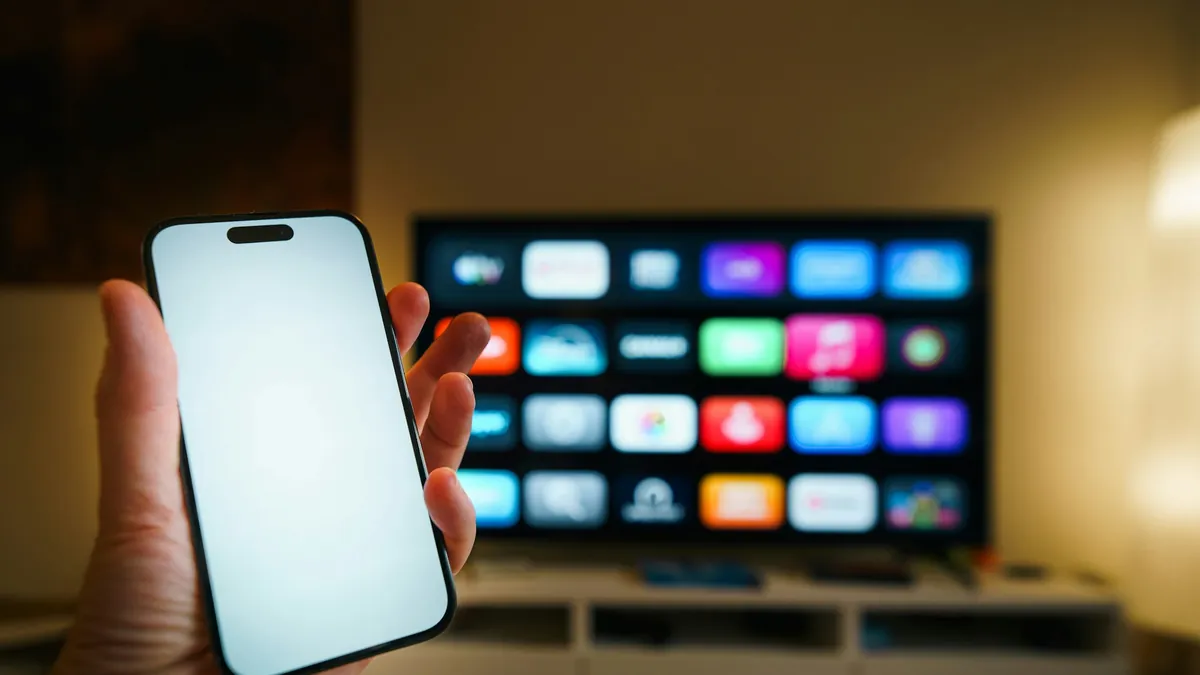
Getting IPTV on Roku is harder than on almost any other streaming device. Roku is one of the biggest streaming brands in the United States, so it comes up a lot in guides written for overseas readers, but in New Zealand the picture is different. Roku devices are sold by only a few local retailers, and most Kiwis who have one bought it overseas or imported it.
This guide is the honest version: three proven ways to watch IPTV on Roku, what each one is good for, and when to spend a little on something better.
Why IPTV on Roku is limited
A Roku only runs apps (Roku calls them channels) from the Roku Channel Store. There is no normal way to install anything else, and Roku’s rules keep most general-purpose IPTV players out of the store.
That means the popular players New Zealanders use on other devices, such as IPTV Smarters Pro, TiviMate and IBO Player, are generally not available on Roku. Compare that with a Fire TV Stick, which runs all of them.
Way 1: Search the Roku Channel Store
Store listings change, so it is worth a two-minute look for an IPTV on Roku player.
- On your Roku, go to Streaming Channels → Search Channels
- Search for IPTV or M3U
- Read the description and reviews of anything that appears
If a player lets you enter an M3U playlist or Xtream Codes login, you can try it with your details. Be cautious: many of these apps are basic, some charge a fee, and they can disappear from the store without warning. Never enter your details into an app that looks untrustworthy.
Way 2: IPTV on Roku with screen mirroring
Screen mirroring is the most dependable way to get IPTV on Roku, although it is a workaround rather than a proper setup. Roku explains the details in its official screen mirroring guide.
From an Android phone: on the Roku, go to Settings → System → Screen mirroring and allow it. On the phone, open Screen cast or Smart View from the quick settings panel, choose the Roku, then play IPTV in your player app. Google Pixel phones do not support mirroring to a Roku, so use a computer instead.
From a Windows PC: press Windows key + K and choose the Roku.
Set up the player on the phone or computer first. Our phone guide and Windows PC and Mac guide cover that.
Way 3: AirPlay from an iPhone, iPad or Mac
Many recent Roku models support AirPlay, which is the easiest route to IPTV on Roku for Apple users.
- On the Roku, check Settings → Apple AirPlay and HomeKit and make sure AirPlay is on
- On your iPhone, iPad or Mac, open Screen Mirroring from Control Centre
- Choose the Roku, then play IPTV in your player app
If AirPlay is not in your Roku’s settings, your model does not support it.
The catch with mirroring IPTV on Roku
Both mirroring methods send your phone or computer’s whole screen to the TV. That adds delay, can stutter, drains your phone’s battery and ties up the phone for the whole programme. It is fine occasionally. For live sport every week, it gets old quickly.
If you stick with mirroring:
- Put the phone on 5GHz Wi-Fi, on the same network as the Roku, and keep it close to the router
- Plug the phone in, because mirroring video for an hour uses a lot of battery
- Turn off notifications, or they appear on the TV in the middle of the programme
- Lower the stream quality if it stutters, because mirroring rarely handles 4K well
If it still buffers, our buffering guide works through the causes in order.
The easy fix: plug in a Fire TV Stick
The best alternative to IPTV on Roku is surprisingly cheap. Plug a Fire TV Stick 4K into a spare HDMI port on the same TV and switch the TV’s input.
- It runs every major IPTV player, including TiviMate
- It is sold widely in New Zealand and is often discounted
- The Roku stays exactly as it was for everything else
Our Fire TV Stick guide takes about ten minutes. If you want recording as well, an Android TV box is the step up; see our device buying guide.
Imported Roku devices and region settings
If you are planning IPTV on Roku with an imported device, check the region first. Some Roku devices bought overseas are tied to their home country’s Channel Store and account region. That affects which channels appear and can make updates awkward. If you are thinking of importing a Roku mainly for IPTV, a locally sold Fire TV Stick or Android box is the simpler choice.
The short version
IPTV on Roku works, but mostly through screen mirroring or AirPlay, which is clumsy for everyday viewing. If the Roku is your main TV device, a Fire TV Stick 4K is the cheapest proper fix. You can test the service on your own setup with a free 24-hour trial. Other devices are covered in the setup guide, and the FAQ answers the common questions.
Common questions
Is IPTV Smarters available on Roku?
Generally no. Roku only allows apps from its own Channel Store, and most general IPTV players, including IPTV Smarters Pro and TiviMate, are not listed there. You can search the store for IPTV or M3U players, but options are limited and change without notice.
Can I screen mirror IPTV to a Roku?
Yes. Enable screen mirroring in the Roku’s system settings, then cast from an Android phone or Windows PC, or use AirPlay from an iPhone on supported models. It works, but adds delay, can stutter and ties up your phone, so it suits occasional viewing.
What is the best alternative to IPTV on Roku in New Zealand?
A Fire TV Stick 4K. It is sold widely in New Zealand, costs little, plugs into a spare HDMI port on the same TV and runs every major IPTV player. If you want recording too, an Android TV box such as an Nvidia Shield is the step up.