How to Set Up IPTV on Your Phone or Tablet in New Zealand
Watching on a phone or tablet is the easiest IPTV setup there is, and it doubles as the best diagnostic tool you have when your TV misbehaves.
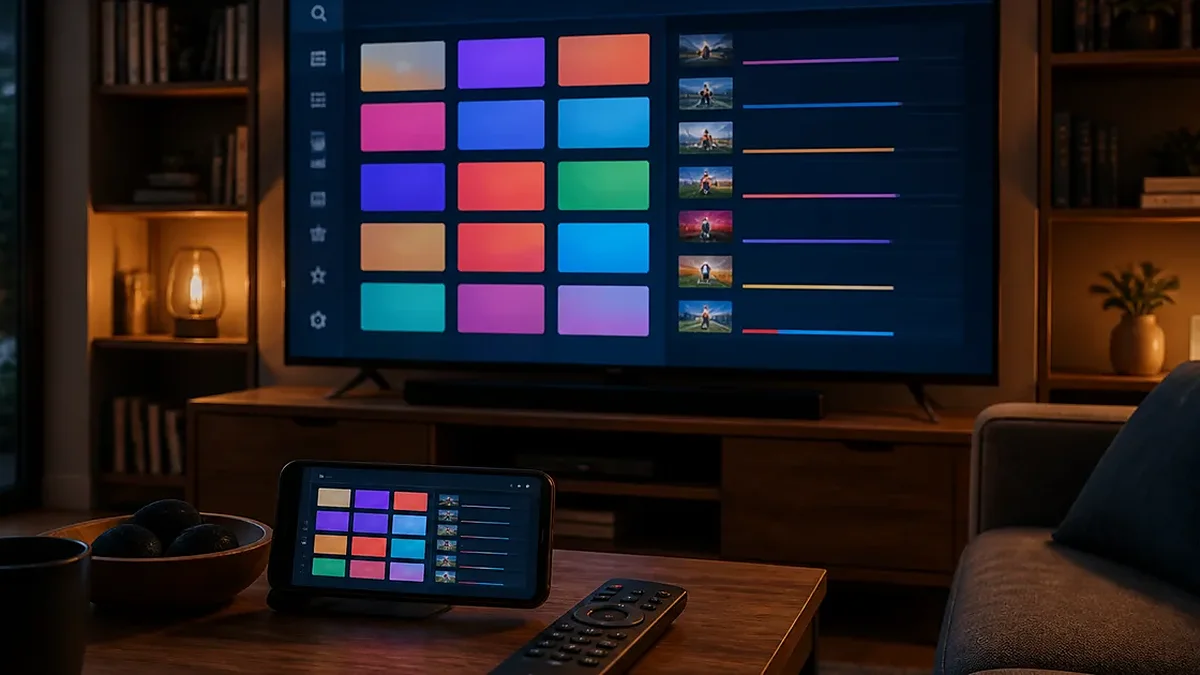
Setting up on a phone takes about three minutes, and it is worth doing even if you mostly watch on the television. Here is why, plus the steps for both platforms.
Why set up your phone even if you watch on the TV
It is the fastest way to diagnose a problem. When your TV buffers, the first question is always “is it the service or your home network?” Playing the same channel on your phone over mobile data answers it in thirty seconds. If the phone works and the TV does not, the problem is your Wi-Fi — not the stream.
It uses a connection you are already paying for. Waiting rooms, lunch breaks, the passenger seat on a long drive.
It is a backup. If the TV app breaks mid-match, the phone keeps going.
One thing to check first: how many connections your plan includes. Watching on the phone while someone watches the TV counts as two simultaneous streams. Our plans run from one device up to six — the pricing page shows which is which.
Android phones and tablets
- Open the Play Store
- Install IPTV Smarters Pro, TiviMate or XCIPTV
- Open the app and choose Add playlist (or Add user) → Xtream Codes API
- Enter your server URL, username and password
- Save
Live TV, films and series appear within about a minute.
Copy and paste rather than typing. If your details arrived by WhatsApp or email, long-press to copy each field. Typing a long server URL on a phone keyboard is how most login failures happen.
iPhone and iPad
- Open the App Store
- Install Smarters Player Lite or GSE Smart IPTV
- Open the app and choose the Xtream Codes or API login option
- Enter your server URL, username and password
- Save and give it a minute
The same app works on iPhone, iPad and Apple TV, so setting up once makes the others familiar.
Mobile data: the numbers that matter
This is worth knowing before you stream on the road.
| Quality | Per hour |
|---|---|
| SD | ~1 GB |
| HD | ~3 GB |
| 4K | ~10 GB |
An hour of HD a day on mobile data is roughly 90 GB a month. On a generous plan that is fine; on a modest one it is not.
Two practical habits:
Drop the quality on mobile. Most players let you pick a lower stream where alternatives exist. On a phone screen, the difference between HD and SD is much less noticeable than on a 55-inch TV — you are spending data for detail you cannot see.
Watch on Wi-Fi where you can. Obvious, but worth saying, because a player app left running in the background can keep pulling data.
Most New Zealand fibre plans are unlimited, so at home this is a non-issue.
Casting to a TV
A common question: can you set up on the phone and cast to the television?
You can, but do not rely on it. Casting re-encodes and adds a hop, which means more buffering, more battery drain, and a phone you cannot use for anything else. It is fine occasionally. For regular viewing, install a player on the TV itself or on a Fire TV Stick — the setup guide covers each device.
Common problems
Login rejected. Check for a trailing space (long-pressing to copy often grabs one), a missing http://, or a capital where there should be lowercase.
Works on mobile data but not home Wi-Fi. That points at your home network rather than the service. Our buffering guide works through it.
Stutters on 4G or 5G. Mobile coverage varies enormously across New Zealand, and rural coverage especially. Drop to a lower quality stream.
Battery drains fast. Streaming video is one of the most demanding things a phone does. Expect it, and plug in for anything long.
App vanished after an update. Reinstall from the store; your subscription details are unaffected.
A note on backgrounding
Both iOS and Android aggressively suspend apps in the background. If you switch away mid-stream and come back to a frozen picture, that is the operating system, not the app. Back out of the channel and reselect it.
Worth doing once
Set up favourites on the phone. The list often syncs or can be rebuilt quickly on other devices, and scrolling thousands of channels on a small screen is even worse than on a TV. Our favourites guide covers it.
Questions? The FAQ covers the common ones, or message us on WhatsApp.
Common questions
How much mobile data does IPTV use?
Roughly 1 GB per hour in SD, 3 GB in HD and 10 GB in 4K. An hour of HD daily is about 90 GB a month. On a phone screen the difference between HD and SD is barely visible, so dropping quality on mobile saves a lot of data for no real loss.
Can I cast IPTV from my phone to the TV?
You can, but do not rely on it. Casting re-encodes and adds a hop, which means more buffering, faster battery drain and a phone you cannot use for anything else. For regular viewing, install a player on the television or on a streaming stick instead.
Does watching on my phone use one of my connections?
Yes. Every simultaneous stream counts against your plan’s connection limit, so a phone and a TV playing at once is two. Our plans run from one device up to six. A player left running in the background can also quietly hold a connection open.