How to Set Up IPTV on a Fire TV Stick in New Zealand
A step-by-step walkthrough for Amazon's Fire TV Stick — installing Downloader, sideloading a player app, entering your details, and the settings that prevent stutter later.
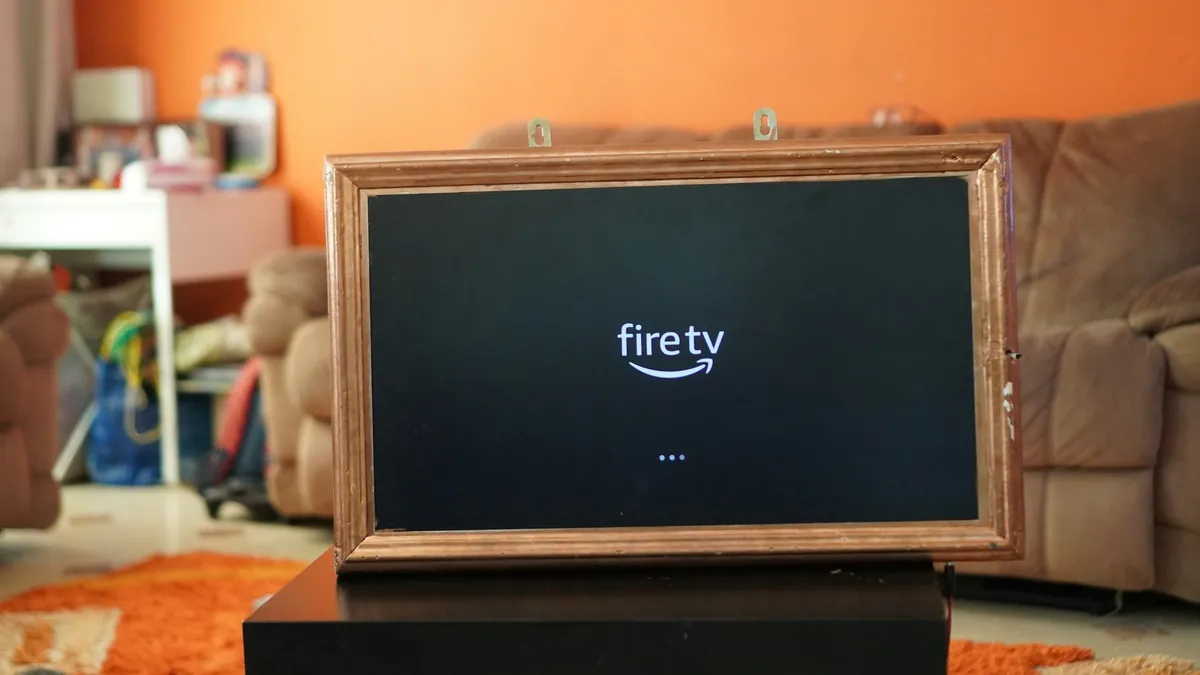
The Fire TV Stick is one of the most common devices New Zealanders use for IPTV — it is inexpensive, plugs into any HDMI port, and runs the main player apps well. Setup takes about ten minutes.
You will need your subscription details to hand: a server URL, username and password. These arrive after you order. If you have not got them yet, start at the pricing page — activation is usually only a few minutes.
Before you start: check your Fire TV Stick can install IPTV apps
Not every Fire TV Stick on sale in 2026 can run IPTV apps. In late 2025 Amazon began moving some models from Fire OS, which is based on Android, to its new Vega OS, which is not. Vega OS has no Downloader app and no “Install unknown apps” setting, so IPTV Smarters Pro, TiviMate and other player apps cannot be installed at all.
According to AFTVnews, two current models run Vega OS:
- Fire TV Stick 4K Select (2025). “Select” is in the name
- Fire TV Stick HD, second generation (2026). It has rounded corners and “Fire TV” printed on the stick
To check yours: go to Settings → My Fire TV → About and look at the software version. If it reads “OS 1.” followed by numbers, it is Vega OS and this guide will not work on it. If it starts with 3, 5, 6, 7, 8 or 14, it is Fire OS and you can carry on.
If you have a Vega OS stick, it is still fine for Netflix and the apps in Amazon’s store, but for IPTV you will need a different device. Our IPTV box guide covers the models that work, and the rest of this guide applies to the Fire TV Stick 4K, 4K Plus, 4K Max, Fire TV Cube, the 2024 Fire TV Stick HD and TVs with Fire TV built in.
Why there is an extra step
Player apps like IPTV Smarters Pro and TiviMate are not in Amazon’s Appstore, so you install them through a tool called Downloader. This is a normal, supported Fire TV feature — Amazon provides the setting for it — but it means two steps instead of one.
Step 1: Install Downloader
- From the Fire TV home screen, go to Find → Search
- Type Downloader
- Select the orange icon with the white download arrow and install it
Step 2: Allow Downloader to install apps
- Go to Settings → My Fire TV → Developer Options
- Select Install unknown apps
- Find Downloader in the list and switch it On
If Developer Options is not visible, go to Settings → My Fire TV → About, highlight Fire TV Stick, and click it seven times. A message confirms developer options are enabled, and the menu appears.
Step 3: Install your player app
Open Downloader and enter the download address for the app you want. We recommend one of:
- IPTV Smarters Pro — the most straightforward, good for a first setup
- TiviMate — better guide and the best recording support, slightly more to learn
- IBO Player — simple and light
Ask us on WhatsApp for the current download address for your chosen app rather than guessing at a URL — addresses change, and typing the wrong one is the most common way this step goes wrong.
When the download finishes, choose Install, then Done, then Delete to remove the installer file and free up space. Fire TV Sticks do not have much storage, so this matters.
Step 4: Enter your details
Open the app you installed.
In IPTV Smarters Pro:
- Choose Login with Xtream Codes API
- Enter any name you like in the playlist name field — it is only a label
- Enter your username, password and server URL exactly as supplied
- Select Add User
In TiviMate:
- Choose Add playlist → Xtream Codes
- Enter the server URL, username and password
- Give the playlist a name and continue
Get the details exactly right. This is where nearly every failed setup goes wrong. Copy and paste if you can rather than typing with the remote. Watch for a trailing space, a capital letter where there should be a lowercase one, and the http:// at the front of the server URL. If login fails, re-check these before anything else.
Give it a minute after logging in. Channels and the guide load in the background, and a long channel list takes a moment to populate the first time.
Step 5: Settings worth changing straight away
Two changes prevent the most common problems.
Turn on hardware decoding. In your app’s playback or player settings, choose the hardware or HW decoder. Software decoding makes the general-purpose processor do the video work, and on a Fire TV Stick that means constant stutter. If one channel then shows a green or distorted picture, switch that one back to software — some streams use formats the chip does not handle.
Connect to the 5GHz network. In Settings → Network, check which band you are on. If the Stick has joined a 2.4GHz network, switch to the 5GHz one if you are within range. The 2.4GHz band is shared with microwaves, baby monitors and every neighbouring router, and in a built-up area it struggles in the evening.
If it stutters
Fire TV Sticks are the device we see most buffering reports from, and it is almost always one of three things.
Wi-Fi. Install a speed test app on the Stick itself and run it where the Stick actually sits. Not on your phone next to the router — on the device. If a 300 Mbps plan is delivering 12 Mbps to the Stick, that is your answer. Amazon sells an Ethernet adapter that plugs into the Stick’s power port and it solves this permanently.
Heat. A Stick pressed against the back of a warm TV throttles itself. Use the HDMI extender that came in the box to get some air around it.
Storage. Fire TV Sticks fill up fast. Uninstall anything you do not use and delete leftover installer files in Downloader.
Our full buffering guide works through the rest in order.
Which Fire TV Stick to buy
If you are buying new, get a Fire TV Stick 4K Max, 4K Plus or 4K, and check the name on the box carefully. Do not buy the Fire TV Stick 4K Select: despite the similar name, it runs Vega OS and cannot install IPTV apps. The same goes for the second-generation Fire TV Stick HD released in 2026.
Of the models that work, the 4K Max is the one to get if you can. It is the fastest, has the most storage, and handles large channel lists and 4K streams comfortably. The older basic Sticks struggle with high-bitrate HD, and the price difference is small.
If you already own an older Fire OS stick, it will work. Expect to stay in HD rather than 4K, and keep hardware decoding on.
In New Zealand, Fire TV Sticks are sold by PB Tech, Noel Leeming, The Warehouse and Warehouse Stationery. Our IPTV box guide compares them with Google TV and Android boxes, and our TiviMate setup guide covers the most popular player on Fire TV in detail.
Next steps
Once it is running, it is worth spending ten minutes setting up favourites so you are not scrolling through thousands of channels to find the six you watch. Both IPTV Smarters Pro and TiviMate let you build a favourites list and reorder channels.
Other devices are covered in the setup guide, and if something is not working, the FAQ covers the common cases — or message us on WhatsApp with your device, app and what you are seeing.
Common questions
Why do I need Downloader on a Fire TV Stick?
Player apps like IPTV Smarters Pro and TiviMate are not in Amazon’s Appstore, so they install through Downloader instead. This is a supported Fire TV feature — Amazon provides the ‘Install unknown apps’ setting for exactly this purpose. It adds one step, not risk.
Which Fire TV Stick is best for IPTV?
The Fire TV Stick 4K Max, then the 4K Plus or 4K. Avoid the Fire TV Stick 4K Select and the 2026 second-generation Fire TV Stick HD: they run Amazon’s Vega OS and cannot install IPTV apps. If you already own an older Fire OS stick, it will work in HD with hardware decoding switched on.
Can I use a Fire TV Stick 4K Select for IPTV?
No. The Fire TV Stick 4K Select runs Amazon’s Vega OS instead of Android-based Fire OS. It has no Downloader app and no option to install apps from outside Amazon’s store, so IPTV player apps cannot be installed. Choose a Fire TV Stick 4K Max, 4K Plus or 4K instead.
Why won’t my IPTV app install on Fire TV?
First check the stick runs Fire OS: under Settings → My Fire TV → About, a software version starting “OS 1.” means Vega OS, which cannot install IPTV apps at all. On Fire OS sticks, it is usually one of two things: ‘Install unknown apps’ is not enabled for Downloader under Settings, or the download address was mistyped. Fire TV Sticks also fill up quickly, so delete leftover installer files in Downloader and uninstall anything you no longer use.