Parental Controls on IPTV: Setting Them Up Properly
A large channel list includes things you may not want a child stumbling into. Here is how to lock categories, set a PIN, and what parental controls genuinely cannot do.
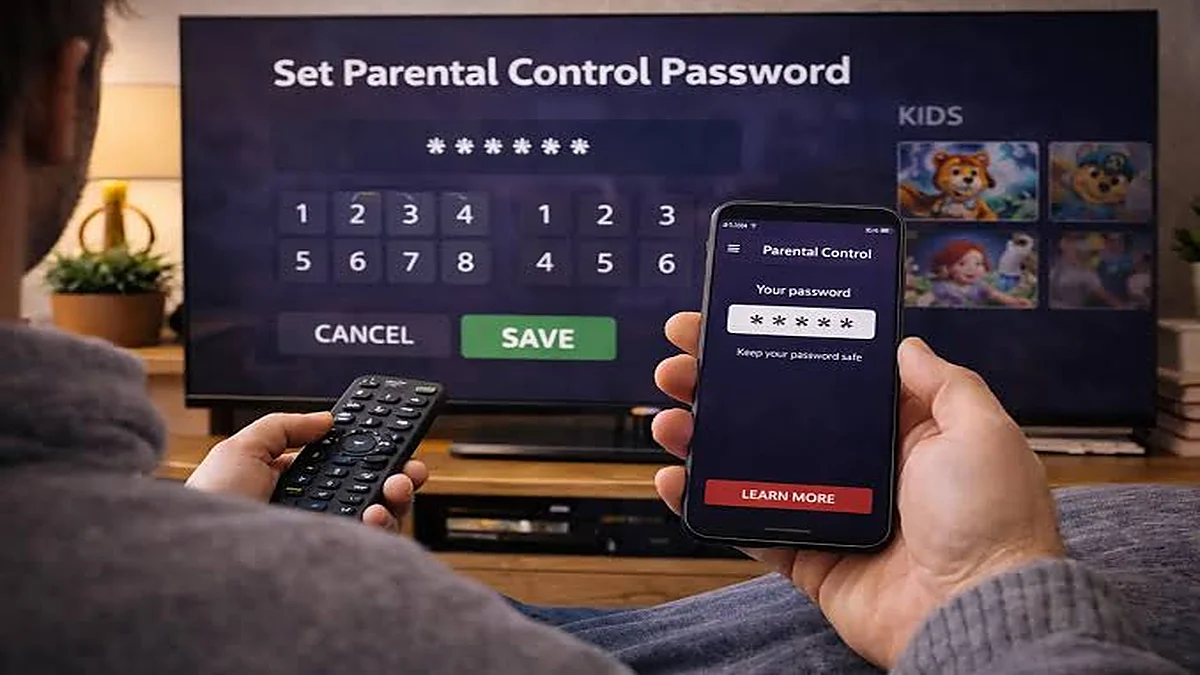
If there are children in the house, this is worth ten minutes before anyone else uses the service. A twenty-thousand-channel list contains categories a nine-year-old with a remote should not wander into.
Every major player app has parental controls. They are off by default.
Understand where the control lives
This matters, because it explains the limitation.
Parental controls are a feature of the player app on that device, not of your subscription. Locking a category in TiviMate on the lounge TV does nothing to the bedroom Fire TV Stick, and nothing to a phone.
You have to set it up on every device a child can reach. There is no central switch.
In TiviMate
- Settings → Parental control
- Set a PIN — you will need it to change anything later
- Choose Channel groups or Channels and lock what you want
Locked channels either hide entirely or require the PIN, depending on your settings. Hiding is usually better with younger children — a visible locked channel is an invitation.
TiviMate also lets you hide groups outright, separately from parental controls, under Settings → Playlists → Channel groups. For categories nobody in the house watches, hiding is cleaner than locking: it removes them from the guide altogether. Our channel organising guide covers that.
In IPTV Smarters Pro
- Open Settings from the main screen
- Find Parental Control
- Set a PIN
- Select categories to lock
Smarters typically locks at category level rather than individual channels. Less granular, but for the main use case that is generally enough.
On a Samsung or LG TV
IBO Player, Duplex IPTV and Smarters Player Lite have varying levels of support — some offer a PIN and category locking, some very little.
If your TV app’s controls are thin and this matters, a Fire TV Stick or Android box with TiviMate gives you proper control for modest money. Our device guide compares the options.
Some devices have controls of their own
Worth layering on top of the app.
Fire TV has Amazon Kids and PIN-protected purchases and app launching. You can require a PIN to open a specific app at all, which is a blunt but effective approach for younger children.
Android TV / Google TV supports restricted profiles and a kids mode.
Apple TV has Screen Time with content restrictions and a passcode.
Your router can filter at the network level — many ISP-supplied routers include parental controls, and this covers every device on the connection including ones you forgot about.
Forgotten PIN
In most apps, clearing app data resets it. Settings → Apps → your player → Clear data. Be aware this also wipes your login and favourites, so have your subscription details to hand before you do it.
On a MAG box, there is usually a default reset code in the manual, or a factory reset in the settings menu.
Uninstalling and reinstalling achieves the same thing with the same cost — you re-enter everything.
What parental controls cannot do
Be realistic about this.
They do not travel between devices. Every device needs setting up individually.
A determined teenager can reinstall the app. That clears the PIN along with everything else. App-level controls are a guardrail for young children, not a security system for older ones.
They do not filter on-demand content well. Category locking works reasonably for live channels; film and series libraries are harder to filter reliably.
They do not stop a child watching on a phone. If they have your subscription details, they can sign in elsewhere — subject to your connection limit.
If you need stronger control, the device-level and router-level options above are harder to get around than an app PIN.
A practical setup for a family
Lock adult categories on every device, including any device a child could reach.
Hide groups nobody watches. Fewer channels in the guide is less to stumble into, and makes the service better for everyone anyway.
Use device-level controls on children’s devices. A PIN to launch the app at all is simpler and more robust than per-category locks.
Set favourites for the children. Genuinely the most effective approach — if their channels are one button away on the favourites screen, there is little reason to browse the full list.
Check it works. Set it up, then try to reach a locked category yourself. Controls that were configured but never tested are common.
Worth doing at setup
The easiest time to do this is during initial setup, before anyone has used the service. Ten minutes then saves an awkward conversation later.
The setup guide covers getting each device running, and the FAQ answers the common questions. If your app’s controls are not behaving as documented, message us on WhatsApp and tell us which app and device.
Common questions
How do I set a parental control PIN on IPTV?
In TiviMate, open Settings then Parental control, set a PIN, and lock the channel groups or individual channels you want restricted. IPTV Smarters Pro has a similar option under Settings. Remember it must be configured on every device a child can reach.
What if I forget my IPTV parental PIN?
Clearing the app’s data resets it in most players — Settings, Apps, your player, Clear data. Be aware this also wipes your login and favourites, so have your subscription details to hand first. On a MAG box, use the reset code in the manual.
Do parental controls work across all my devices?
No. Parental controls are a feature of the player app on that particular device, not of your subscription. Locking a category on the lounge TV does nothing to the bedroom stick or a phone. Each device needs setting up individually.