Setting Up IPTV on an Android TV Box or Nvidia Shield
An Android TV box is the most capable device for IPTV — it runs every player app, supports recording, and takes a USB drive. Here is the setup and what to look for when buying one.
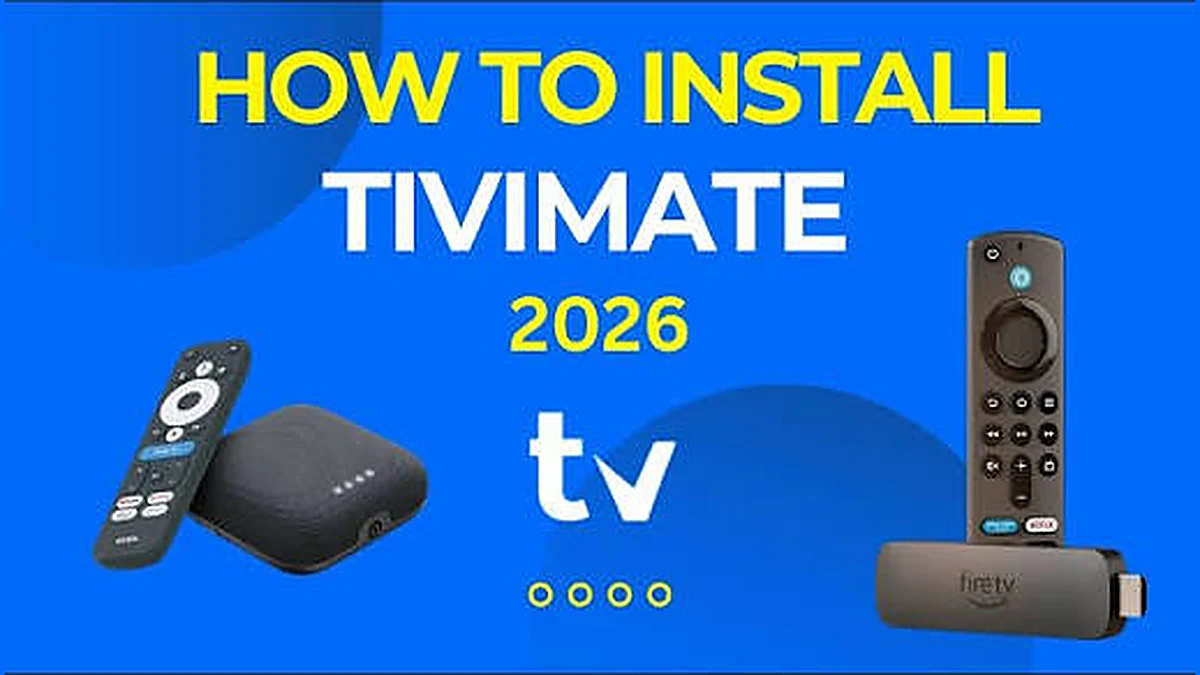
If you want the most capable IPTV setup, an Android TV box is it. Unlike a Samsung TV or an Apple TV, it runs every major player app, supports recording to a USB drive, and gives you full control over decoding.
Setup is the most straightforward of any device because everything comes from the Play Store — no sideloading, no MAC address to send.
Have your server URL, username and password ready from your order. If you have not ordered yet, the plans are here.
Step 1: Install a player app
From the home screen, open the Play Store and install one of:
- TiviMate — the best guide and the only one with proper scheduled recording. If DVR matters, this is the one.
- IPTV Smarters Pro — simplest to set up, good default choice.
- XCIPTV — solid alternative with good customisation.
Unlike on a Fire TV Stick, these are in the Play Store directly. No Downloader, no developer options.
Step 2: Enter your details
In TiviMate:
- Add playlist → Xtream Codes
- Enter server URL, username and password
- Name the playlist and continue
- TiviMate will ask which channel groups to include — you can accept all and tidy later
In IPTV Smarters Pro:
- Login with Xtream Codes API
- Enter username, password and server URL
- Add User
Use a phone to type if your box supports it — most Android TV remotes pair with the Google Home app, which lets you type on the phone keyboard. Far quicker and fewer errors than a d-pad.
Step 3: Settings worth changing
Hardware decoding. In player settings, choose the hardware or HW decoder. This matters less on a Shield than on a cheap box, but it is still the right default. If one channel then shows green or distorted video, switch that one back.
Buffer size. TiviMate lets you adjust buffering. If you get occasional brief stutters, increasing it slightly trades a longer channel-change delay for smoother playback. Useful on rural wireless connections.
Ethernet. Most boxes have a port. Use it if you can — it removes the single most common cause of buffering. Our buffering guide covers the rest.
Recording, which is the real advantage
This is why people choose Android over Apple or a Smart TV, and from New Zealand it matters more than most places — overseas sport frequently airs in the small hours here.
TiviMate supports scheduled recording from the guide, series recording, and writing to a connected USB drive. Plug in a drive, point TiviMate at it in Settings → Recordings, and set recordings from the programme guide.
The device must be awake when the programme airs. A box in deep sleep does not wake itself to record. For an overnight recording, leave it powered on. This is the single most common reason a scheduled recording produces nothing.
Storage roughly: 3–4 GB per hour of HD, 10–15 GB for 4K. Our recording guide has the detail.
Buying advice
Nvidia Shield TV / Shield TV Pro. The best Android TV device by a clear margin — fast, excellent decoding, Ethernet, USB ports, and years of updates. Expensive, and worth it if IPTV is your main television.
Google TV Streamer / Chromecast with Google TV. Good middle option. Runs everything well. Fewer ports — check for USB if you want recording.
Xiaomi Mi Box and similar branded boxes. Reasonable value, generally fine for HD and light 4K.
Unbranded boxes from marketplace sellers. Be careful here. Many claim 4K and 8K and deliver stuttering software decoding. Many run old Android versions that stop getting app updates. Many ship with pre-loaded piracy apps, which is its own problem. If a box costs almost nothing and claims everything, believe the price rather than the claims.
What to check before buying:
- Android TV or Google TV, not plain Android — tablet Android on a TV is a poor experience
- Ethernet port if the box will sit near the router
- USB port if you want recording
- At least 2 GB RAM, preferably more
- HEVC/H.265 hardware decoding if you want 4K
Fire TV Stick or Android box?
A Fire TV Stick is cheaper and runs the same apps, but requires sideloading through Downloader and has limited storage. An Android TV box is more expensive, installs everything from the Play Store, and handles recording properly.
If you already own a Fire TV Stick, use it — our Fire TV guide covers it. If you are buying fresh and want recording, get an Android box.
If something goes wrong
Login rejected. Check each field carefully — trailing spaces and a missing http:// are the usual causes.
Channels play then stop. Often a buffer setting or Wi-Fi. Try Ethernet and increase the buffer.
Box slows down over time. Clear the app cache (Settings → Apps → your player → Clear cache, not Clear data) and check free storage.
The setup guide covers other devices, and the FAQ answers the common questions.
Common questions
Which Android TV box is best for IPTV?
An Nvidia Shield is the strongest by a clear margin — fast, excellent decoding, Ethernet, USB ports and years of updates. A Google TV Streamer or Xiaomi box is good value below that. Avoid unbranded marketplace boxes claiming 8K for almost nothing.
Do I need to sideload apps on Android TV?
No, and that is the main advantage over a Fire TV Stick. TiviMate, IPTV Smarters Pro and XCIPTV all install directly from the Play Store — no Downloader, no developer options, no unknown-sources setting to enable.
Can an Android TV box record IPTV?
Yes, and it is the best option for it. TiviMate supports scheduled and series recording to internal storage or a connected USB drive. The one catch: the box must be awake when the programme airs, so leave it powered on for anything recording overnight.