IPTV on Xbox in New Zealand: 2 Best Apps and Easy Setup
An Xbox Series X, Series S or One can play IPTV using apps from the Microsoft Store. Here are the two that work, how to set them up, and what an Xbox does well and badly as a TV box.
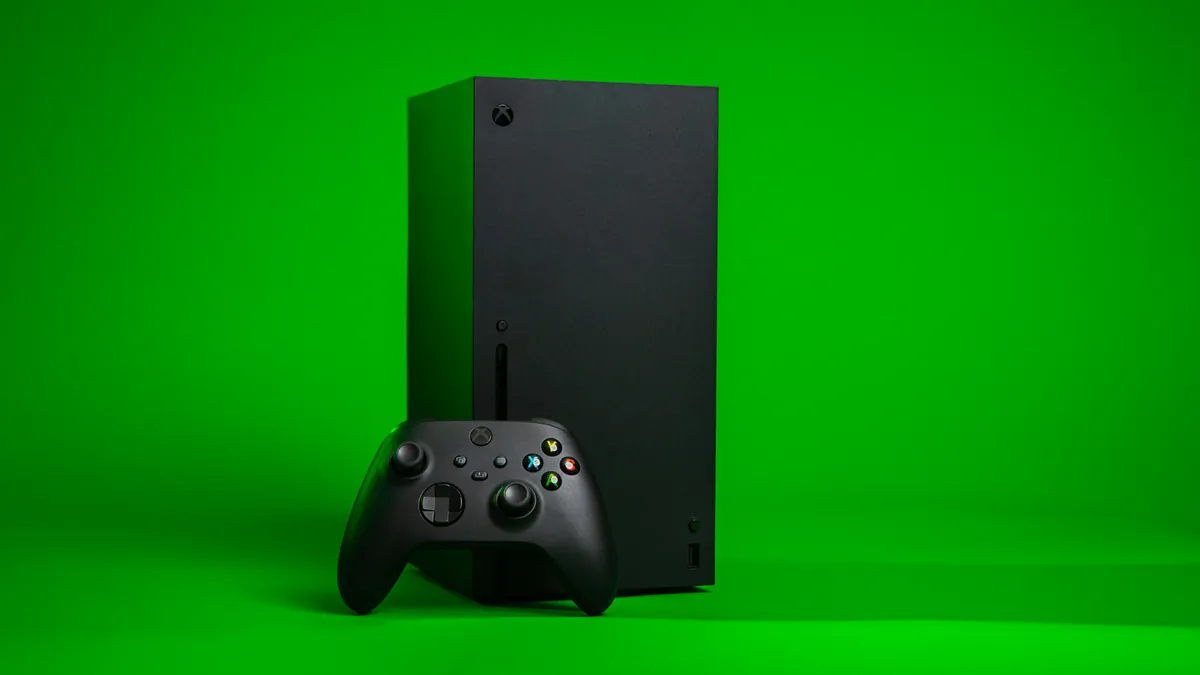
If there is an Xbox under the TV, watching IPTV on Xbox may mean you do not need another box at all. An Xbox Series X, Series S or Xbox One can play IPTV through apps in the Microsoft Store, and many New Zealand households already have one plugged into the main TV.
It is not the most polished IPTV device, but it works, and the setup takes about ten minutes. Have your playlist URL and TV guide (EPG) URL ready. They arrive after you order, and you can test IPTV on Xbox with a free 24-hour trial before you pay.
The 2 best apps for IPTV on Xbox
There is no single official IPTV app on Xbox. Two apps from the Microsoft Store are the reliable choices.
1. MyIPTV Player. The simplest option. It is built for playlists, supports a TV guide and favourites, and works well with a controller. You can see the listing on the Microsoft Store.
2. Kodi. A full media centre with an official IPTV add-on. More setup, but more control, and the same interface as Kodi on other devices. Our Kodi guide covers it step by step.
Unlike a Fire TV Stick, there is no sideloading on an Xbox. You are limited to what is in the Microsoft Store, which keeps IPTV on Xbox simple and safe.
How to set up IPTV on Xbox
Step 1: Install the app
- Press the Xbox button and open the Store
- Search for MyIPTV Player (or Kodi)
- Select it and choose Get or Install
Step 2: Add your playlist in MyIPTV Player
- Open MyIPTV Player and go to Settings
- Choose Add new playlist and EPG source
- Enter a name for the playlist and paste your playlist URL
- Add the EPG (TV guide) URL if your provider supplied one
- Save, then select the playlist as the active playlist in Settings
Go back to the main screen and your channels load within a minute or two.
Step 3: Make typing easier
Entering a long URL with a controller is slow and easy to get wrong. Plug a USB keyboard into the Xbox, or use the Xbox app on your phone, which lets you type on the phone keyboard. Check for spaces at the end of each field and the http:// at the start.
Settings for better IPTV on Xbox
Use a wired connection. Xboxes have an Ethernet port, and consoles often sit right next to the router. A cable is the single best fix for buffering. If you must use Wi-Fi, make sure it is on the 5GHz network.
Check the time zone. Under Settings → System → Time, make sure it is set to New Zealand time. A wrong time zone shifts the TV guide, and daylight saving in late September and early April is when it usually shows up.
Change the power mode. In Settings → General → Power options, energy-saving mode can slow the Xbox waking up and can close apps in the background. Choose the mode that suits you, but expect the app to reload if the console fully sleeps.
Hide channel groups you never watch. A shorter list is much easier to browse with a controller. Our favourites guide shows how to cut a huge list down to what you actually watch.
What IPTV on Xbox does well
- It is already there. No extra device and no extra remote to lose.
- It is powerful. Series X and Series S have plenty of processing power for HD and 4K streams on a New Zealand fibre connection.
- It has Ethernet built in, which many streaming sticks do not.
What IPTV on Xbox does badly
- The controller is not a TV remote. Changing channels quickly is clumsier. A cheap Xbox media remote helps.
- Power and noise. A console uses more electricity than a streaming stick, and its fan can be audible in a quiet room.
- Recording. The Xbox apps do not offer proper scheduled recording. If recording matters, see our recording guide.
- Gaming and watching compete. If someone wants to play, the TV is taken.
If the Xbox becomes the household’s main TV box, a Fire TV Stick 4K is a cheap way to free it up again. Our device buying guide compares the options.
Fixing common IPTV on Xbox problems
Playlist will not load. The URL is usually mistyped. Re-enter it with a keyboard, then restart the app.
Guide is empty. IPTV on Xbox needs the EPG address for the guide. Add the EPG URL in settings if you have not, and give it a few minutes on first load.
Buffering. Most IPTV on Xbox buffering is Wi-Fi. Try an Ethernet cable first, then work through our buffering guide.
App closes when you switch to a game. Consoles suspend apps in the background. Reopen the app and reselect the channel.
No sound through the soundbar. Check the Xbox audio output under Settings → General → Volume & audio output, then see our audio guide.
Other devices are in our setup guide, and the FAQ covers the common questions.
Common questions
Can you watch IPTV on an Xbox?
Yes. An Xbox Series X, Series S or Xbox One can play IPTV using MyIPTV Player or Kodi, both from the Microsoft Store. There is no sideloading, so those store apps are the reliable options. Add your playlist URL and TV guide address, and channels load within minutes.
What is the best app for IPTV on Xbox?
MyIPTV Player for most people, because it is simple, supports a TV guide and works well with a controller. Kodi is the better choice if you already use it or want more control, but it takes longer to set up using the official IPTV Simple Client add-on.
Is an Xbox good for IPTV?
It works well if you already own one: it is powerful and has Ethernet. The downsides are a controller instead of a remote, higher power use and no proper recording. If it becomes your main TV box, a Fire TV Stick 4K is a cheaper dedicated option.